
Screen controls
All the buttons and commands available on the main screen during a game.
The control panel
At the bottom right of the main screen, a control panel gives you access to essential commands. It appears as a settings button that opens a menu.

Available commands
| Button | Function |
|---|---|
| Home (house icon) | Return to the game selection screen. Players will need to rescan the QR code. |
| Pause / Resume | Pause the game or resume it. Useful for making an announcement or handling an unexpected situation. |
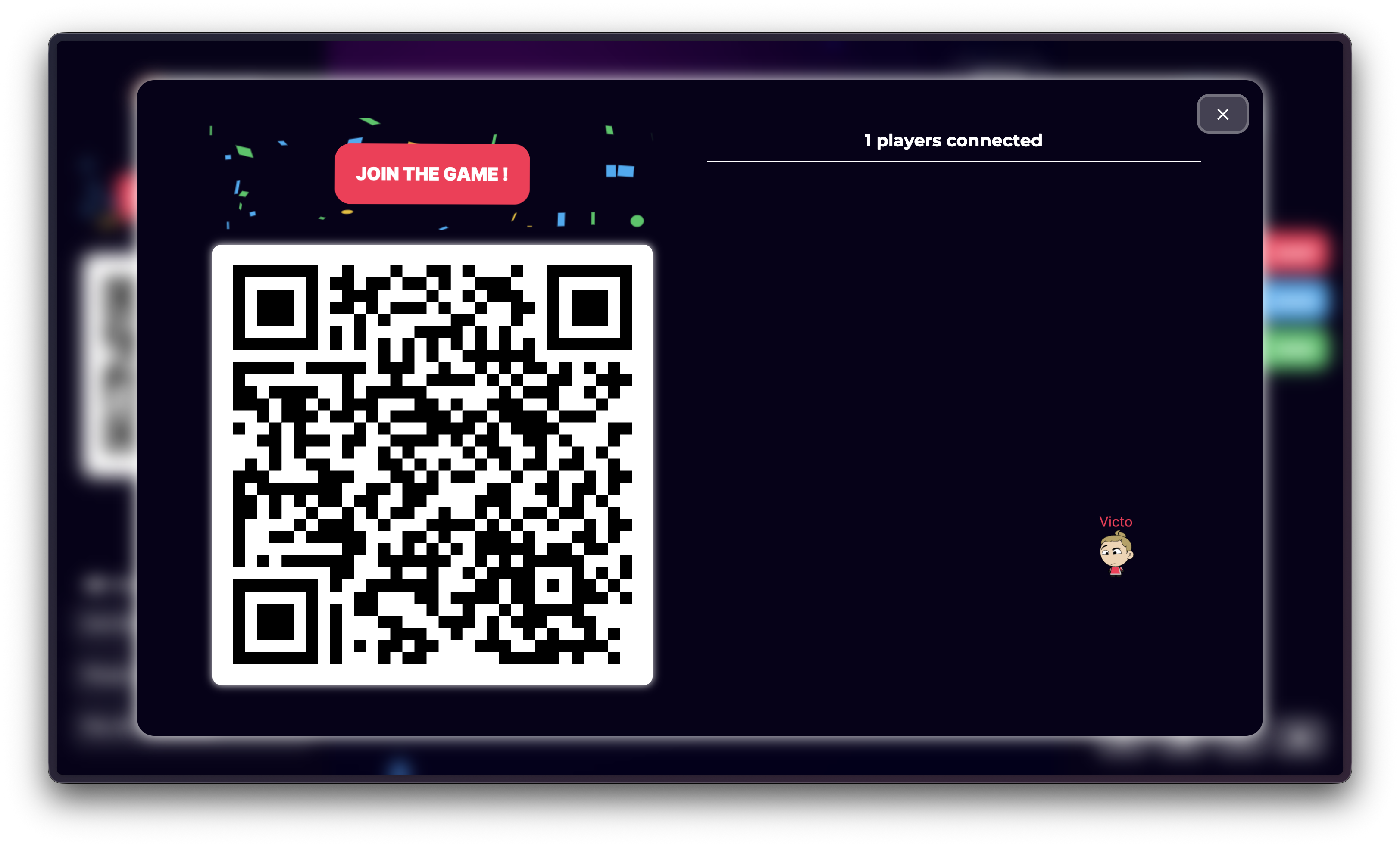
| QR Code | Display the QR code full screen. The game is automatically paused. Close it to resume. |
| Full Screen | Enter or exit full screen mode. Same as pressing F11. |
| Mute | Mute or unmute the game sound. Useful when making an announcement on the microphone. |
When to use what
Display the QR code full screen
Use this when you want to invite new players to join. The QR code is displayed across the entire screen, making it easier to scan from a distance.
The game is automatically paused when the QR code is shown, and resumes when you close it.
Pause the game
Pausing is useful for:
- Making an announcement to the audience
- Handling an unexpected technical issue
- Giving players time to reconnect
Mute the sound
Useful when:
- You're picking up the microphone for an announcement
- The game audio is interrupting an important conversation
- You're taking a music break between two games
Take a few minutes to familiarize yourself with these controls before your first event. It will save you from fumbling during the action.