
Launch Your First Game
From game selection to the final scoreboard — everything you need to know for your first game.
Choose a game
Once logged in on console.unboared.com, the home screen displays all available games. Each game shows its name, an icon, and an estimate of the number of players and duration.
For your first time, start with GeoLoc or Unblind Test. They're the most accessible and engaging games — perfect for breaking the ice.
Click on the game of your choice to launch it.
The game screen
Once a game is launched, the main screen is divided into three areas:
- On the left: the QR code and instructions for joining
- In the center: the game itself
- On the right: the top scores (today's best and all-time records for your venue)
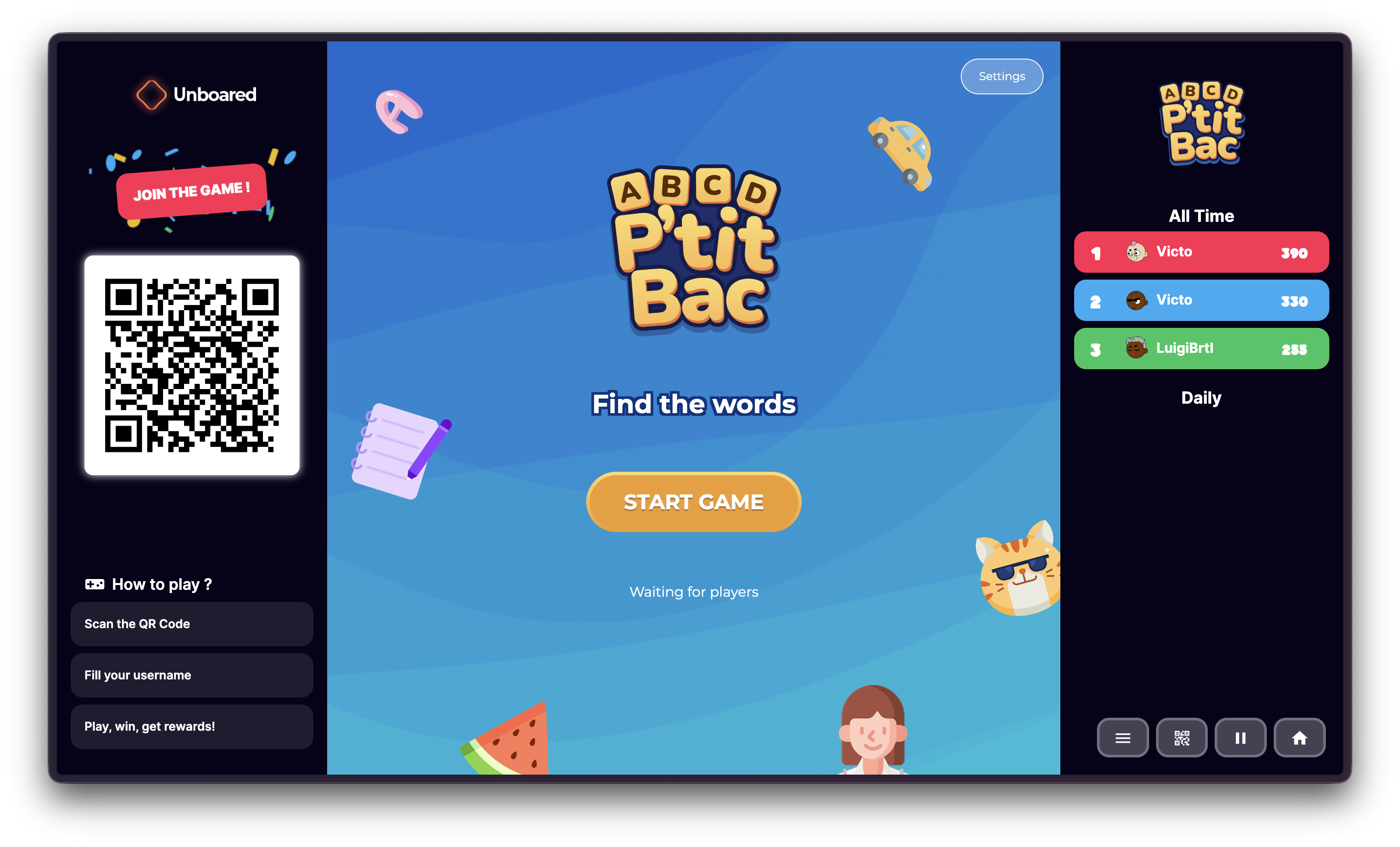
Players join in
Players scan the QR code displayed on the left side of the screen with their phone camera. They land on a page where they:
- Pick a username
- Choose an avatar
- Tap Play
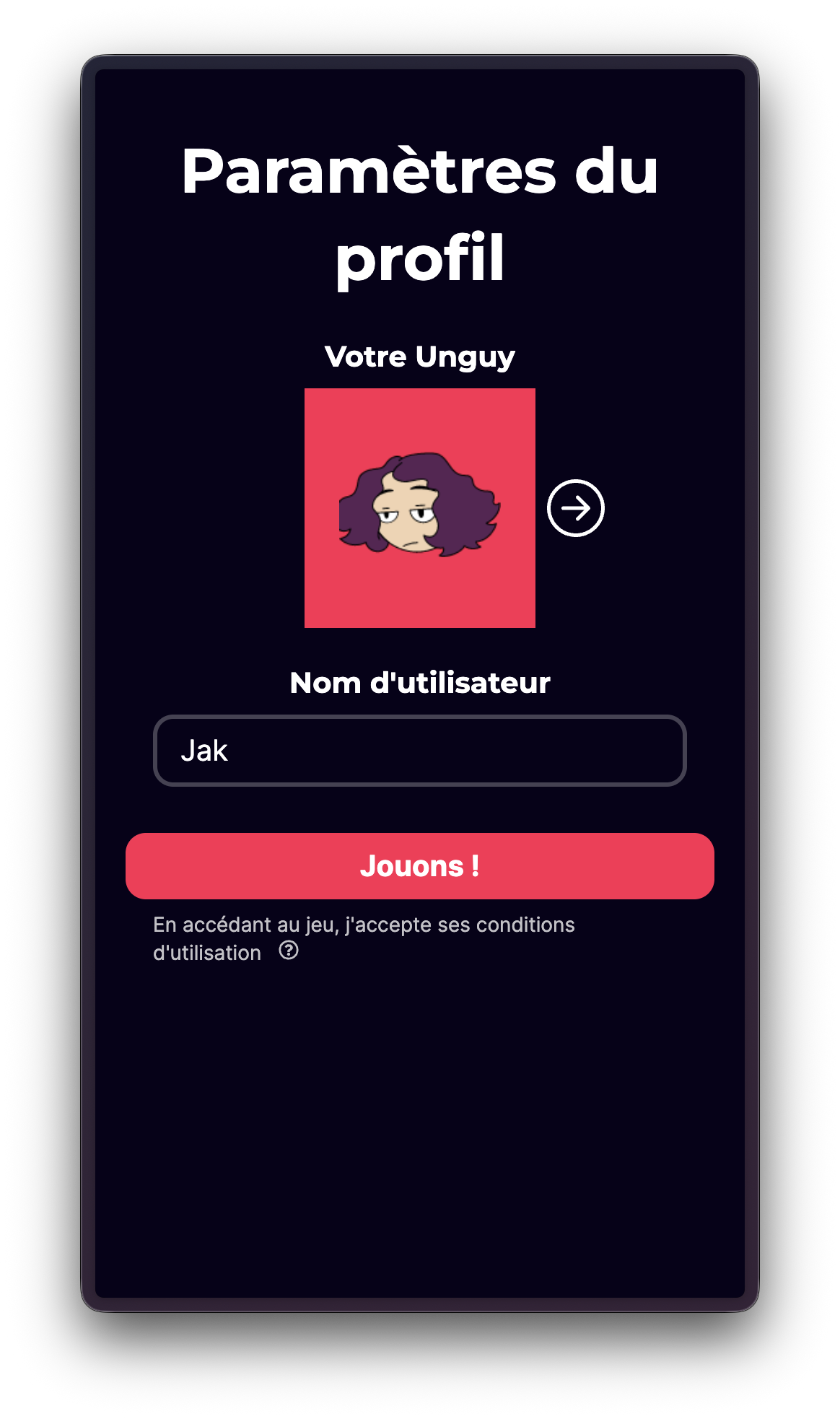
That's it. No app, no account needed.
If a player comes back later (on the same browser), Unboared recognizes them automatically — they just need to tap one button to rejoin.
Start the game
As the host, you decide when to start the game. Wait until enough players have connected, then launch the game from the screen.
Each game lasts about 5 minutes on average — short enough to make people want to try again.
End of game
At the end of each game, scores are displayed. The top scores are automatically saved to your venue's leaderboard (always visible on the right side of the screen).
Switch games
To move on to another game, use the Home button in the control panel at the bottom right of the screen. This takes you back to the game selection.
When you switch games, players need to rescan the QR code to reconnect to the new game. Give them a heads-up so the transition goes smoothly.