
Setting Up Unboared
Plug in, open up, and play. Setup takes 2 minutes.
Step by step
Connect your computer to the TV
Plug your computer into the TV (or projector) with an HDMI cable. Make sure the TV is displaying your computer screen.
Open Chrome
Launch Google Chrome on your computer. We recommend Chrome for the best compatibility.
Go to console.unboared.com
Type console.unboared.com in the address bar and sign in to your account.
Go full screen
Press F11 (or Fn + F on Mac) to put the browser in full screen mode. This makes the display more immersive and the QR code easier to scan.
Check the QR code
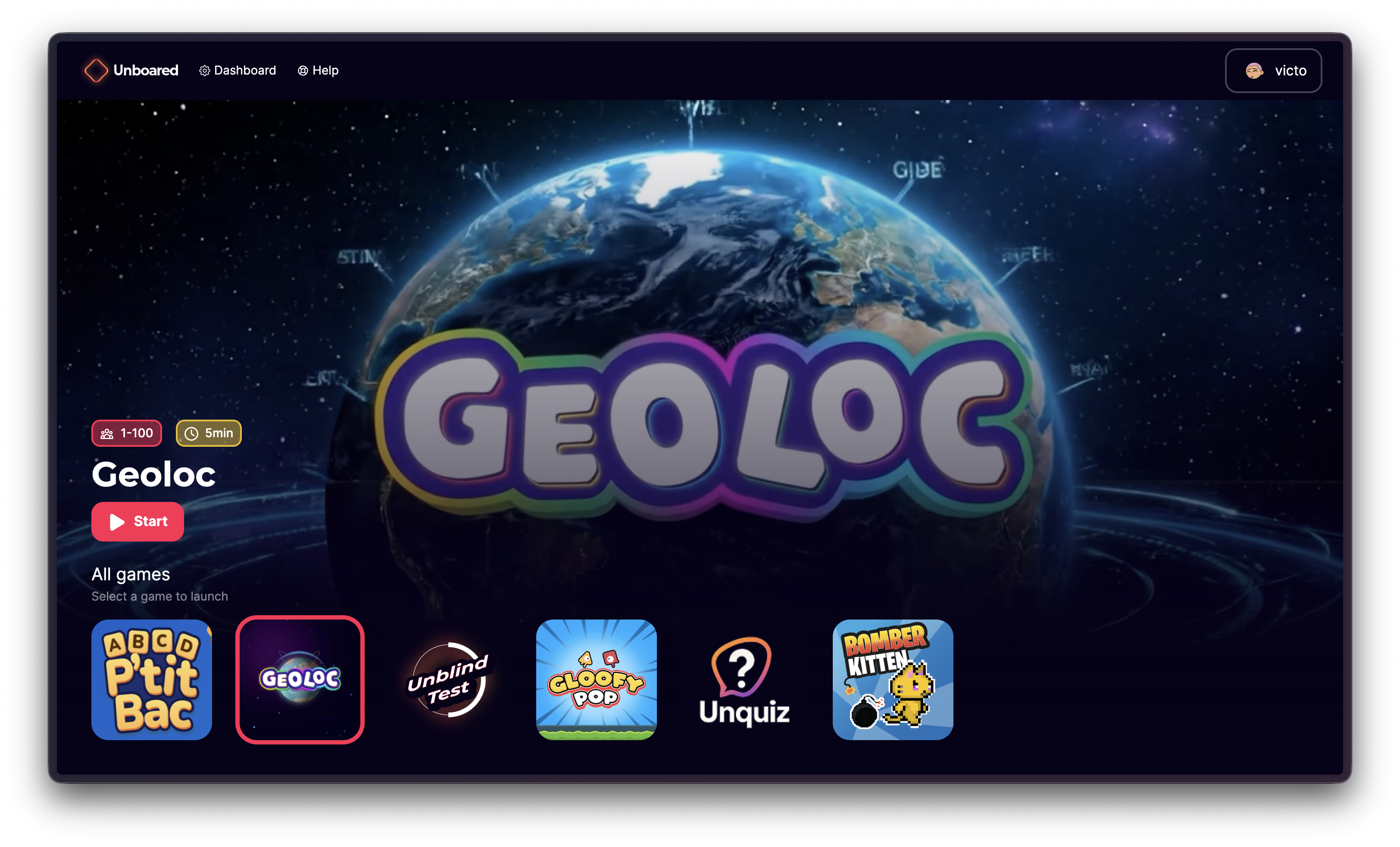
The home screen appears with the list of available games. When you launch a game, the QR code will show up so players can join.
Test the QR code with your own phone before your customers arrive. This lets you make sure everything is working properly.
Audio settings
Sound matters, especially for the Blind Test. Remember to:
- Turn up the volume on your computer
- Turn up the volume on the TV (if audio goes through HDMI)
- Click once inside the game page — browsers sometimes block auto-play audio until there's been an interaction
If you have an external speaker, plug it into the audio output of your computer or TV.
Useful shortcuts
| Action | Windows | Mac |
|---|---|---|
| Full screen | F11 | Fn + F |
| Exit full screen | F11 or Esc | Fn + F or Esc |
| Mute browser tab | Right-click tab > Mute tab | Right-click tab > Mute tab |